Controlling your character works much like in many other shooters. You’ll find the keybindings at the bottom of this page or in the overview of all keybindings.
For everything else, there are the following interaction menus.
Buttons, switches, displays
You’ll come across lots of buttons, switches and control terminals in the game world. You can simply operate them with your mouse. Get close and hold the F key. Then you can call the elevator, for example, scroll through the available options with the mouse wheel and make your choice with a Left click.
With terminals, you don’t need to hold F. A single tap as soon as you see Use is enough.
Interaction menu
What sets Star Citizen apart from other games is the interaction menu, which you bring up by pressing and holding the F key. It lets you choose what you want to do with the object you’re looking at. You can also set what the primary and secondary action for this type of object is.
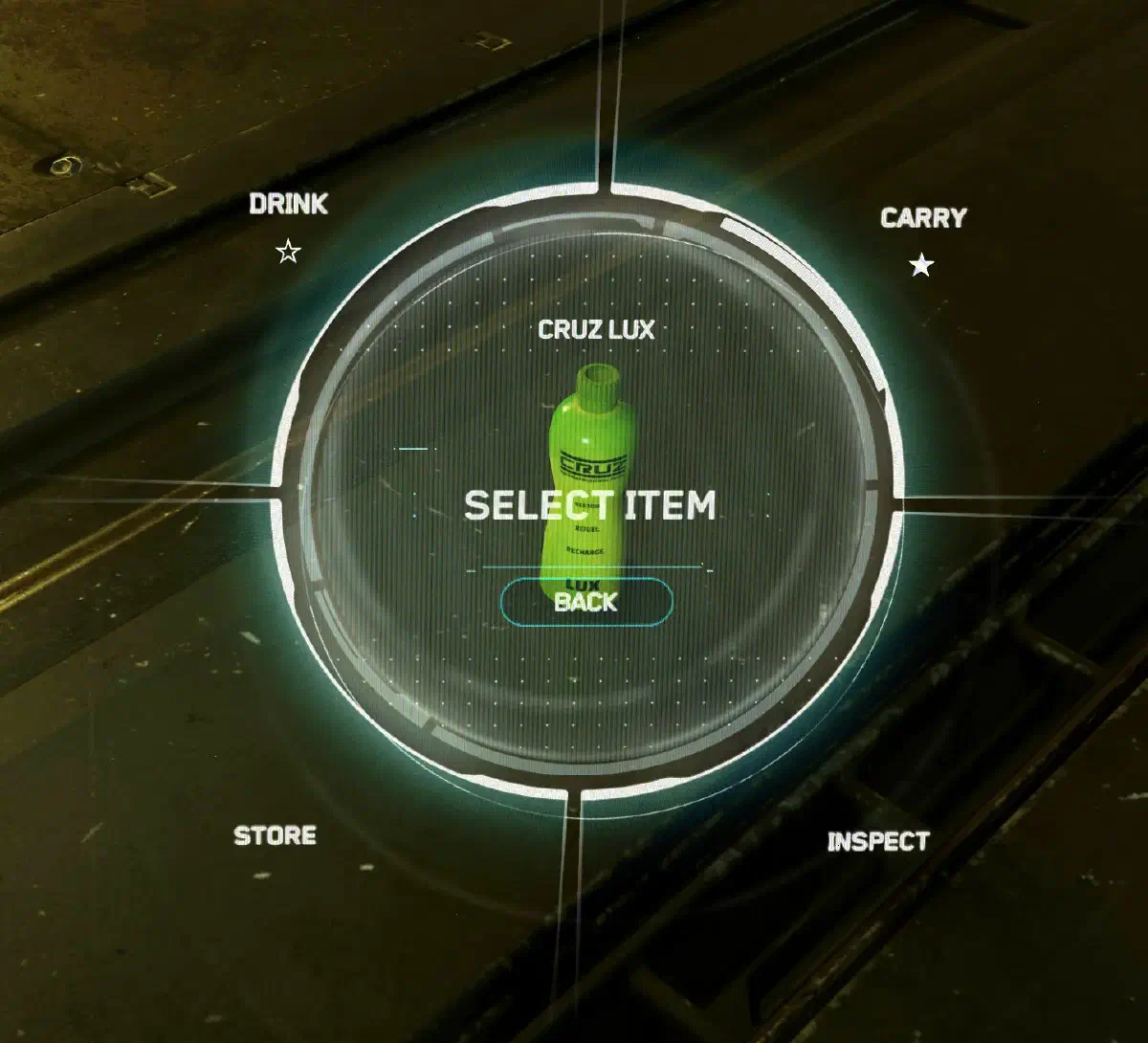
For example, if you look at a bottle and hold F, you’ll see the following menu:
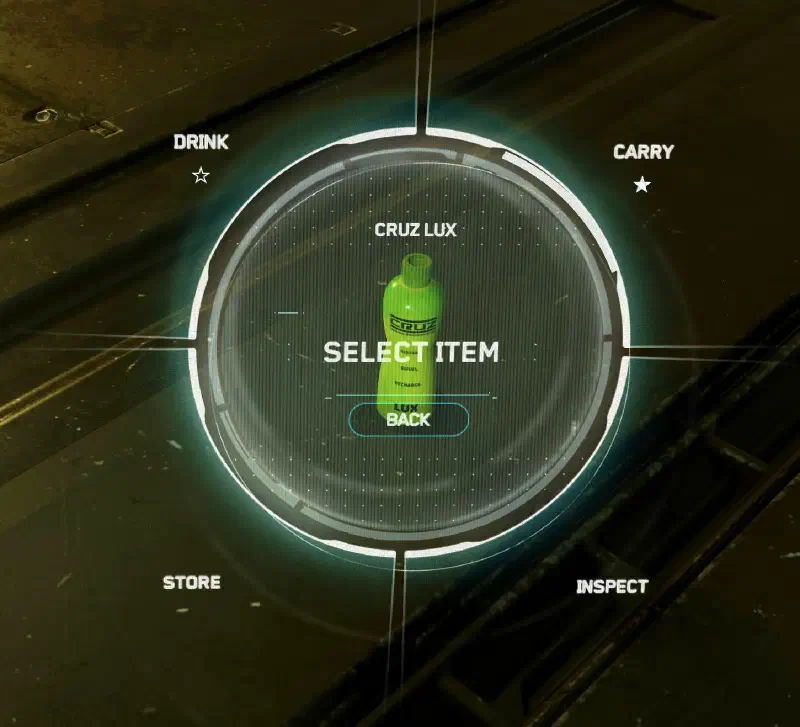
All possible interactions are shown here. To perform an action, hold F, select the action you want with your mouse and let go of F.
Main interactions
Two of the actions are also marked with stars. The filled star shows the primary action. So if you look at any bottle and briefly tap F, this action is performed. In this case CARRY, meaning pick it up.
The empty star shows the secondary action, here DRINK. Double-tap F to perform it.
But if drinking isn’t the action you want to do most often, you can change the primary or secondary action and place the stars however you like. That then applies to all objects of this type, so in this case to all drink bottles.
To do that, press and hold F, select the action you want with your mouse, click the middle mouse button and then choose whether you want to assign the primary or the secondary action.
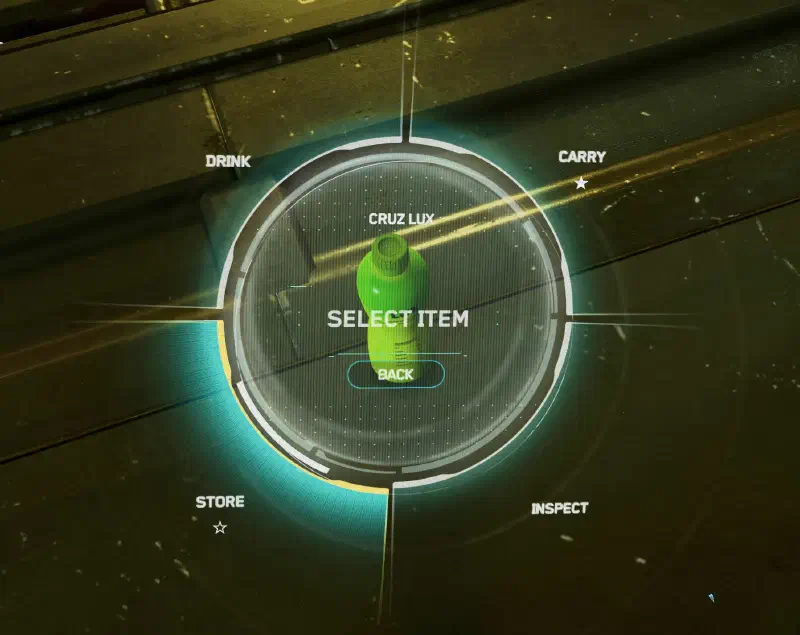
Here STORE was selected, meaning put it in your inventory. Now if you look at a drink bottle anywhere in the world and double-tap F, your character puts it in their backpack instead of drinking from it.
Action menu
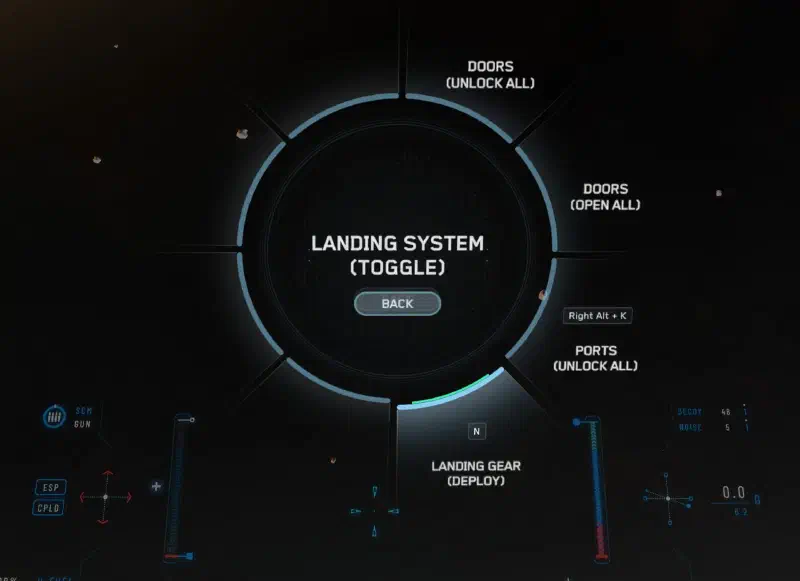
If you don’t want to interact with a specific object but perform an action yourself, press and hold L-Alt + F. That brings up a radial menu that lets you navigate through all currently available actions. So if you don’t know a certain key combination, you can use it to perform emotes, ship actions (only in the pilot seat) and much more.
Keybindings
General
| Key(s) | Action |
|---|---|
Y | Get up from a bed etc. |
W A S D | Movement keys |
Q / E | Lean left / right |
Ctrl | Go prone, get up |
C | Crouch, stand up |
F | Primary interaction |
F ⇊ | Secondary interaction |
F ⇓ | Show interaction menu |
L-Shift | Sprint |
Mouse wheel ⭥ | Adjust walking speed |
L-Alt + H | Take off or put on helmet |
L-Alt + X | Wipe helmet visor |
L-Alt + F | Open action menu |
F1 | Open mobiGlas |
F2 | Open mobiGlas and show map |
F4 | Change camera view |
T | Flashlight |
F12 | Toggle chat |
⇊ - double tap
⇓ - hold
⭥ - scroll
Combat
| Key(s) | Action |
|---|---|
1 / 2 | Draw primary or secondary weapon |
3 | Pistol or MedGun |
4 | MedPen |
5 | Multi-Tool |
6 | Fists up |
G | Grenades |
Left click ⇓ / Right click ⇓ | Pull the pin and hold the grenade |
Left click ↑ | Throw grenade |
Right click ↑ | Roll grenade |
Middle mouse button | Melee attack |
V | Equip knife |
L-Alt + R | Lower held weapon |
R ⇓ | Holster equipped item |
Right click ⇓ | With weapon equipped: ADS or zoom |
L-Shift ⇓ | While zoomed: Hold breath to steady the crosshair |
R | Reload with a new magazine |
L-Alt + 1 | Refill half-empty magazines |
J | View and change weapon attachments |
B | Change fire mode, depending on the weapon between full auto, semi-auto or burst |
U | Activate underbarrel item, like flashlights or laser pointers |
⇓ - hold ↑ - release
Show all keybindings