
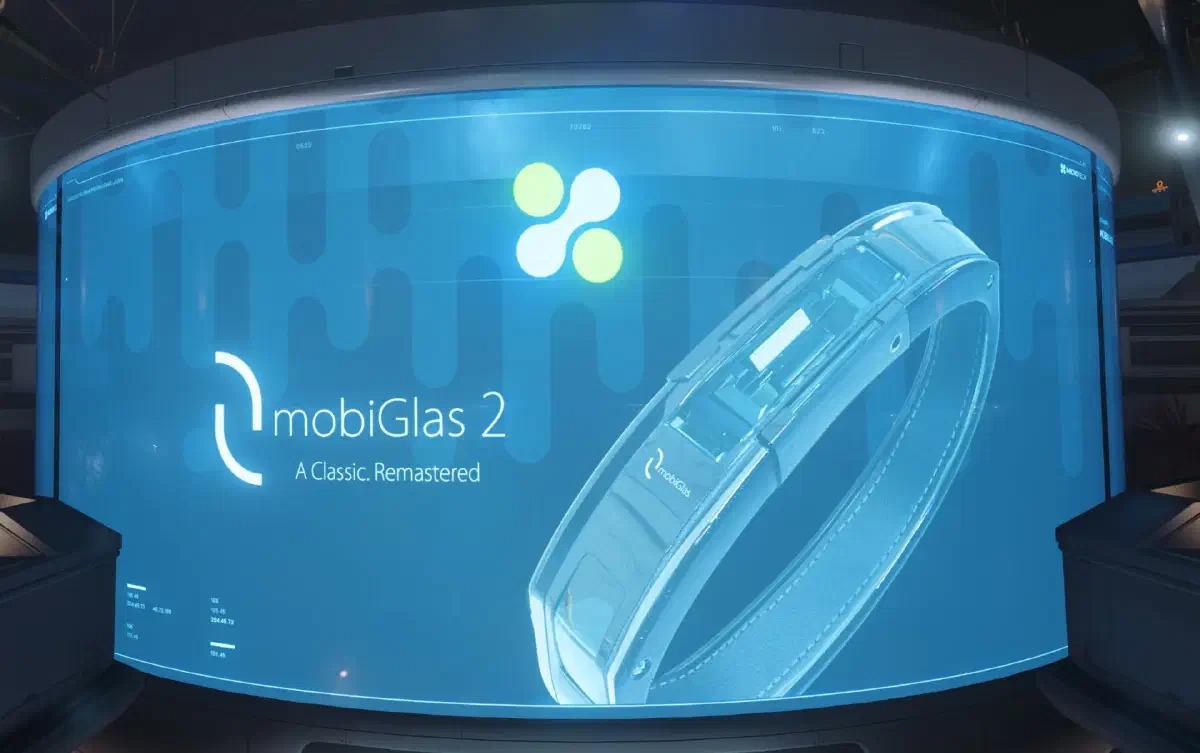
A lot of your interactions with the world happen through your mobiGlas. It’s an electronic device, an evolution of today’s smartphone. Your character wears it on their wrist and operates it through a holographic display.
You can use it to check lots of information about your physical health, your ship’s condition and your surroundings.
There are ten apps in total in the bottom bar:
| App | What for |
|---|---|
| Home | The overview page with your current condition |
| Comms | The chat |
| Contracts | Available and already accepted missions |
| Maps | Maps from the star system down to your location |
| Journal | Things worth knowing about the ‘verse: tips for miners, lore events and sometimes in-game events |
| Assets | Shows you where you’ve stored what |
| Rep | Your reputation with the various factions |
| Wallet | Send money to other players |
| Landing | Landing services like refueling, repairs and rearming |
| Vehicles | Modify your vehicles on site |
On this page I’ll go through the apps you’ll need most often at the start.
Overview page
Press F1 and your mobiGlas opens, showing an overview of your current condition:
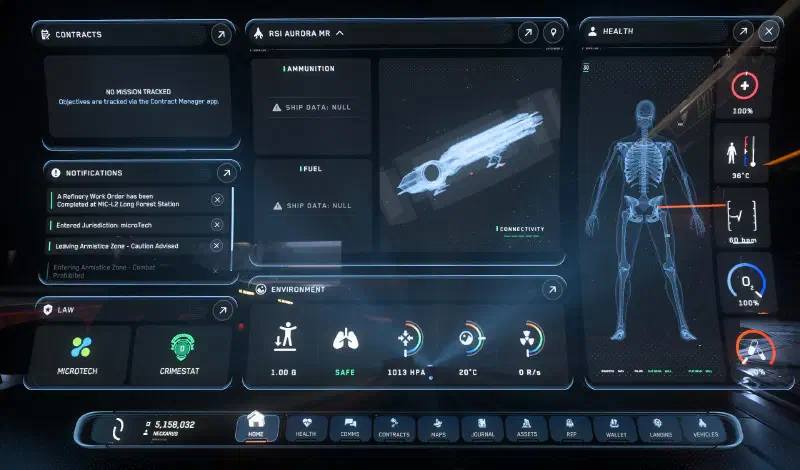
Here you can see everything important: your health, your account balance, how hostile your current environment is and much more.
Use the bottom bar to switch between the individual sections of your mobiGlas to get more information on each topic.
Contracts
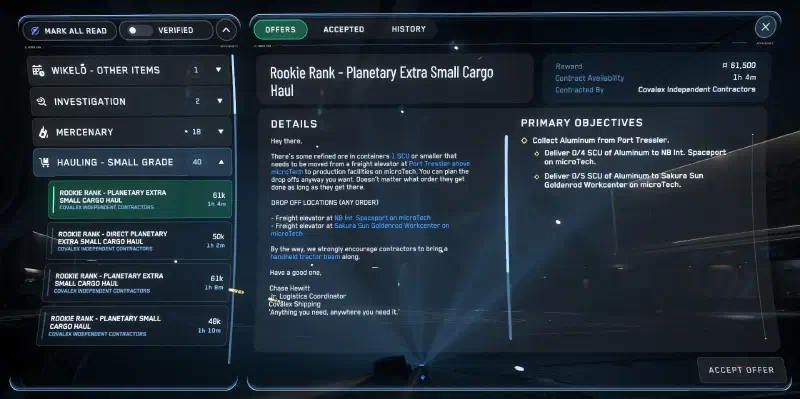
In the contract overview, you pick an available mission you want to do. Here you’ll see all the details of your tasks and how much you’ll get for completing them successfully.
You can also use the switch at the top to toggle between verified and unverified. Unverified contracts are the ones that operate outside the law.
Maps
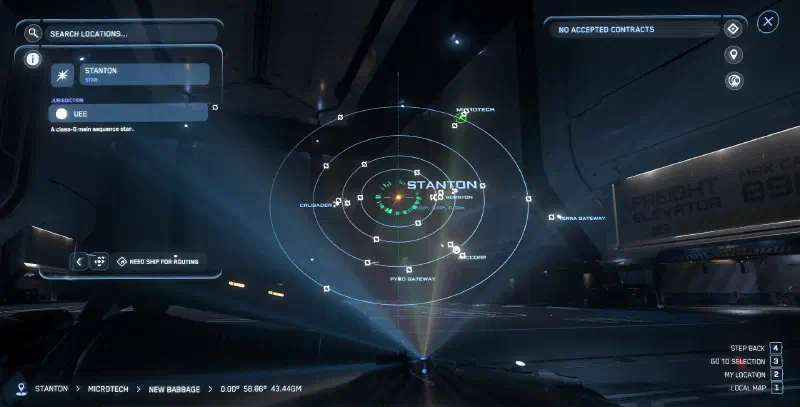
The map view shows your position both in the star system and at your current location. Whether in a spaceship or in a city, it helps you find your way.
You can also open this view directly with F2.
Press the R key to create a waypoint to the position under your mouse cursor.
Use the Mouse wheel to zoom out from your local position into the star system view and even into the overview of all star systems. A Double-click zooms to any position, and 2 brings you back to yourself.
You can rotate the view with Left click and pan it with Right click.
Vehicles
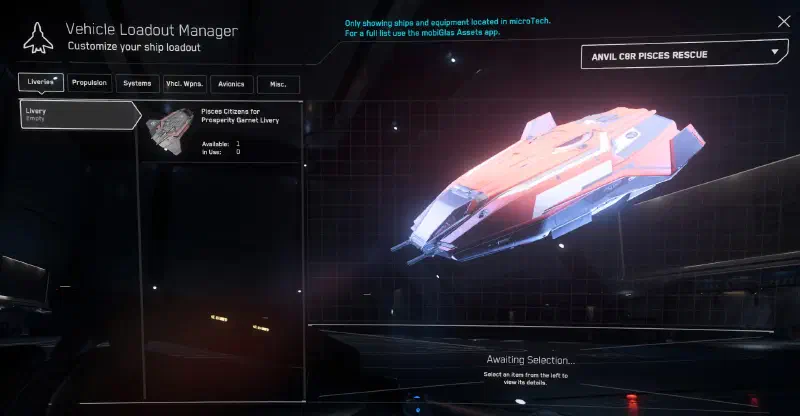
In this menu, you can edit the vehicles and ships at this location and swap their current loadout.
To do that, select your ship in the dropdown menu. In the top left you can then pick different areas: ship paints, weapons and other systems and components. You buy the components themselves in many shops, or you remove them from other ships you find. Salvagers get plenty of opportunities for that.
You can also install components directly from other ships. Look out for the labels Available and In Use.
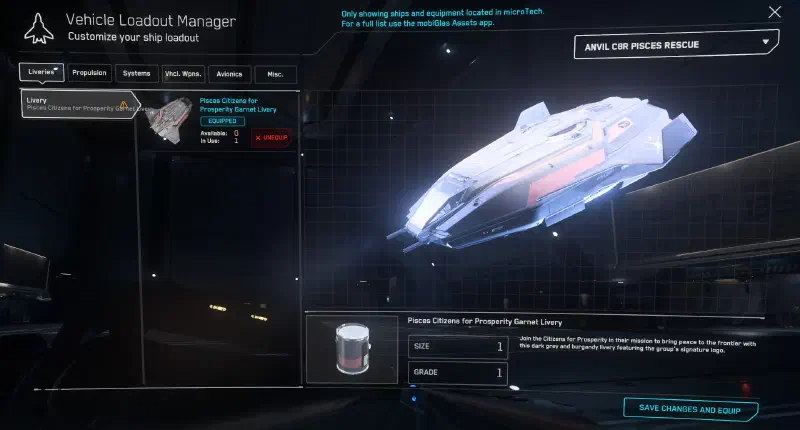
Once you’ve changed everything the way you want, click Save Changes and Equip to equip the ship that way.
Landing Services
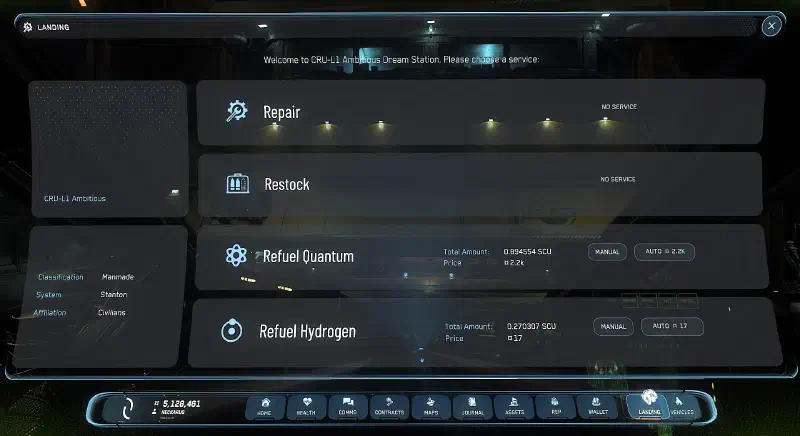
After landing in a hangar, you can get your vehicle back into shape in the Landing tab. Here you can top up ammo and fuel and repair the ship. It all happens automatically as soon as you click Auto in the corresponding row. The price for the service is shown right in the same button.